Link your Microsoft Office 365 account so NoteLedger can pull in your contacts from Outlook and automatically detect contact details from the email signatures in your mailbox. The whole process takes about two minutes.
Open the Integrations page
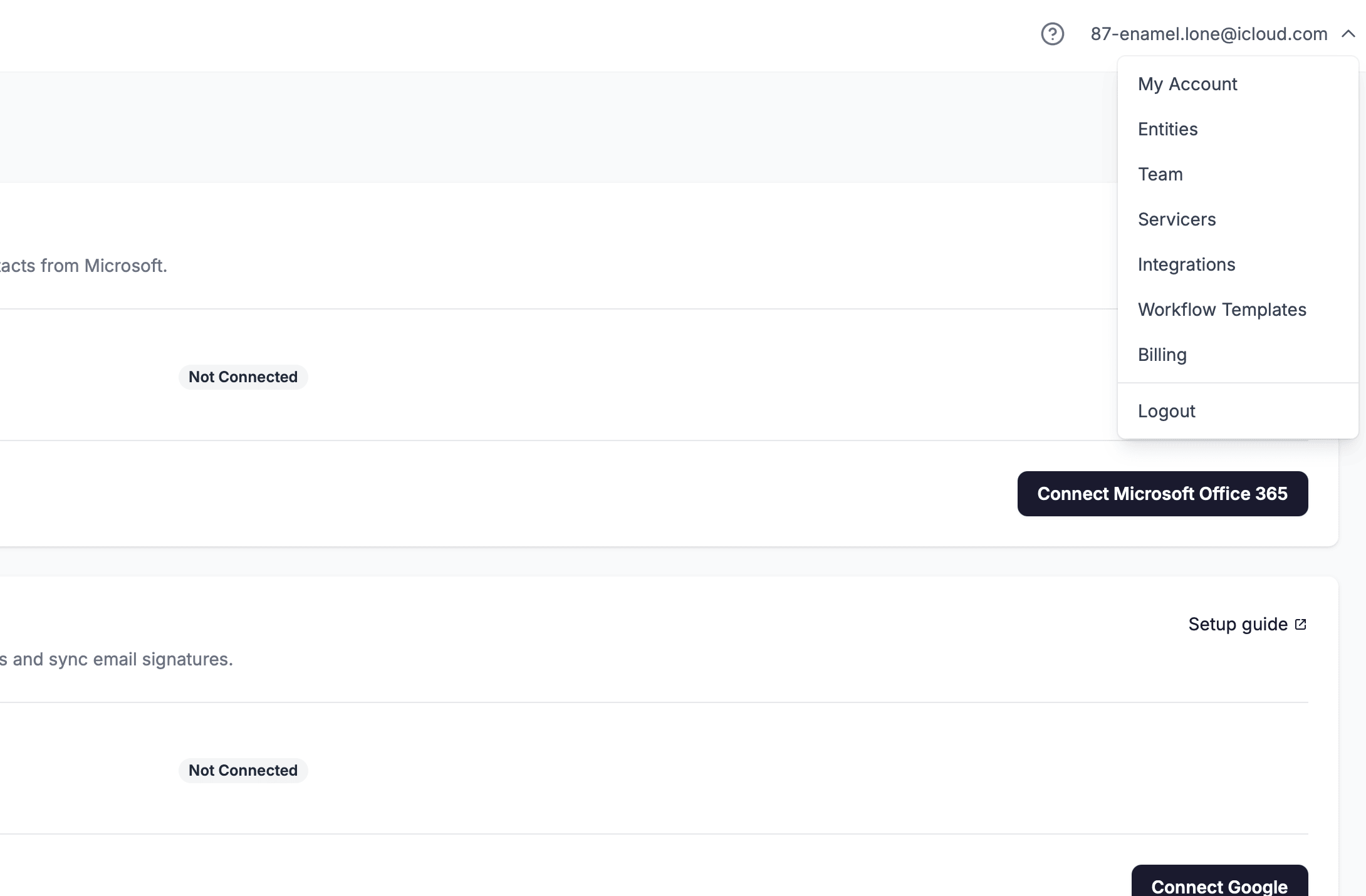
In the top-right corner of NoteLedger, click your account email to open the user menu. Click Integrations to open the Integrations page.
Find the Microsoft Office 365 card
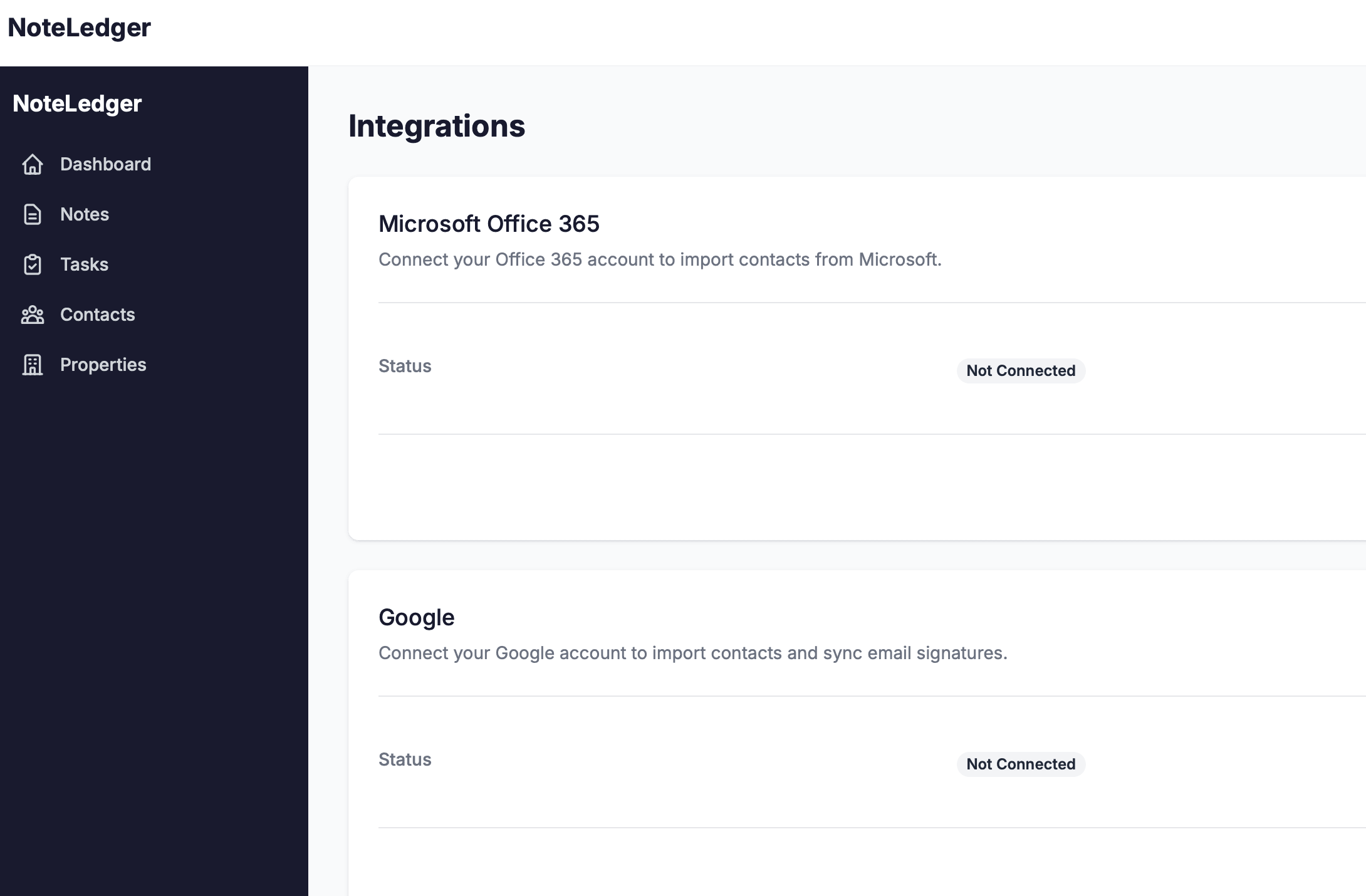
The Integrations page shows a card for each supported provider. Locate the Microsoft Office 365 card. Its status badge will show Not Connected until you complete this guide.
Click Connect Microsoft Office 365
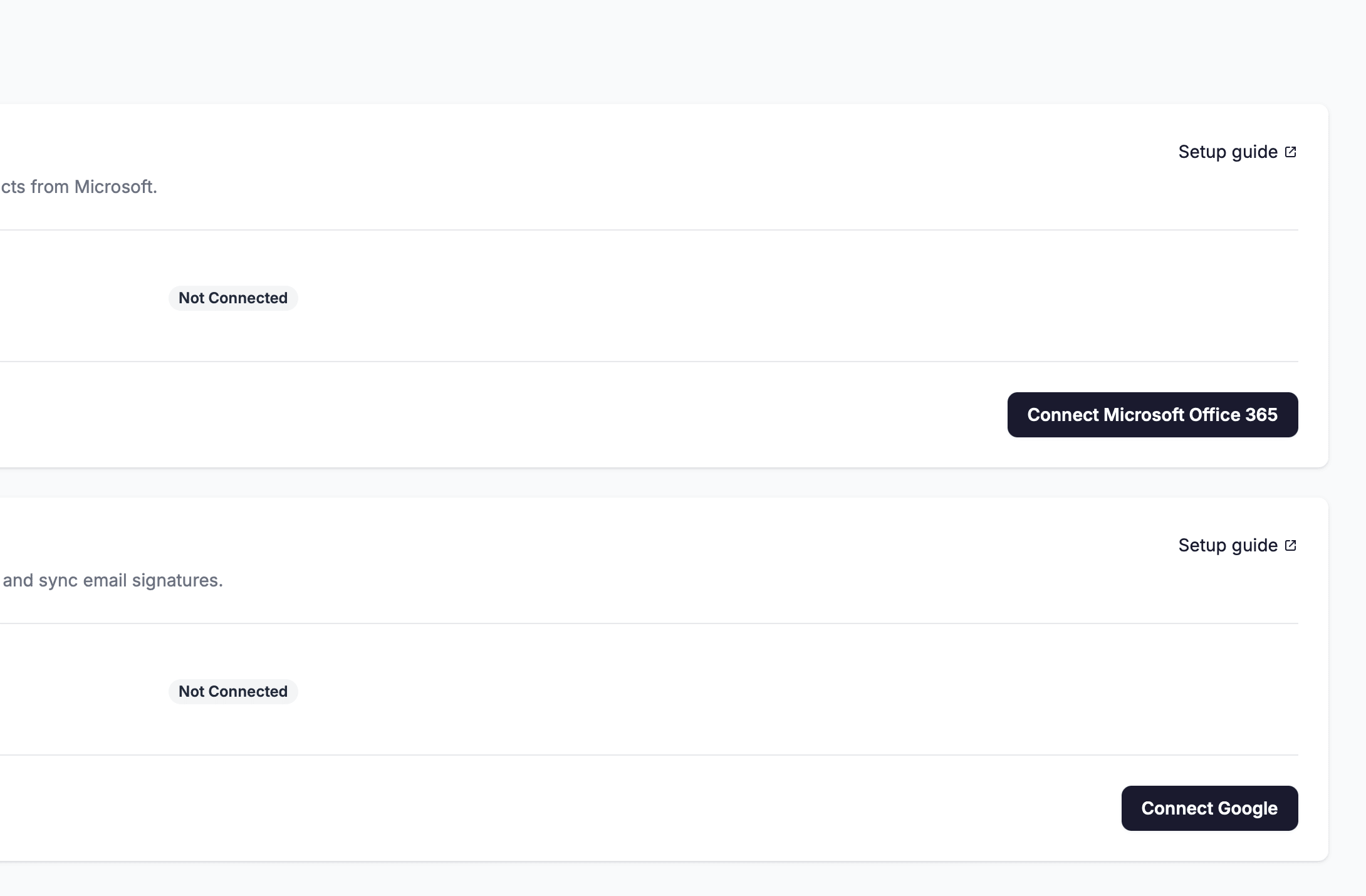
At the bottom-right of the Microsoft Office 365 card, click the Connect Microsoft Office 365 button. NoteLedger will redirect your browser to Microsoft's sign-in page.
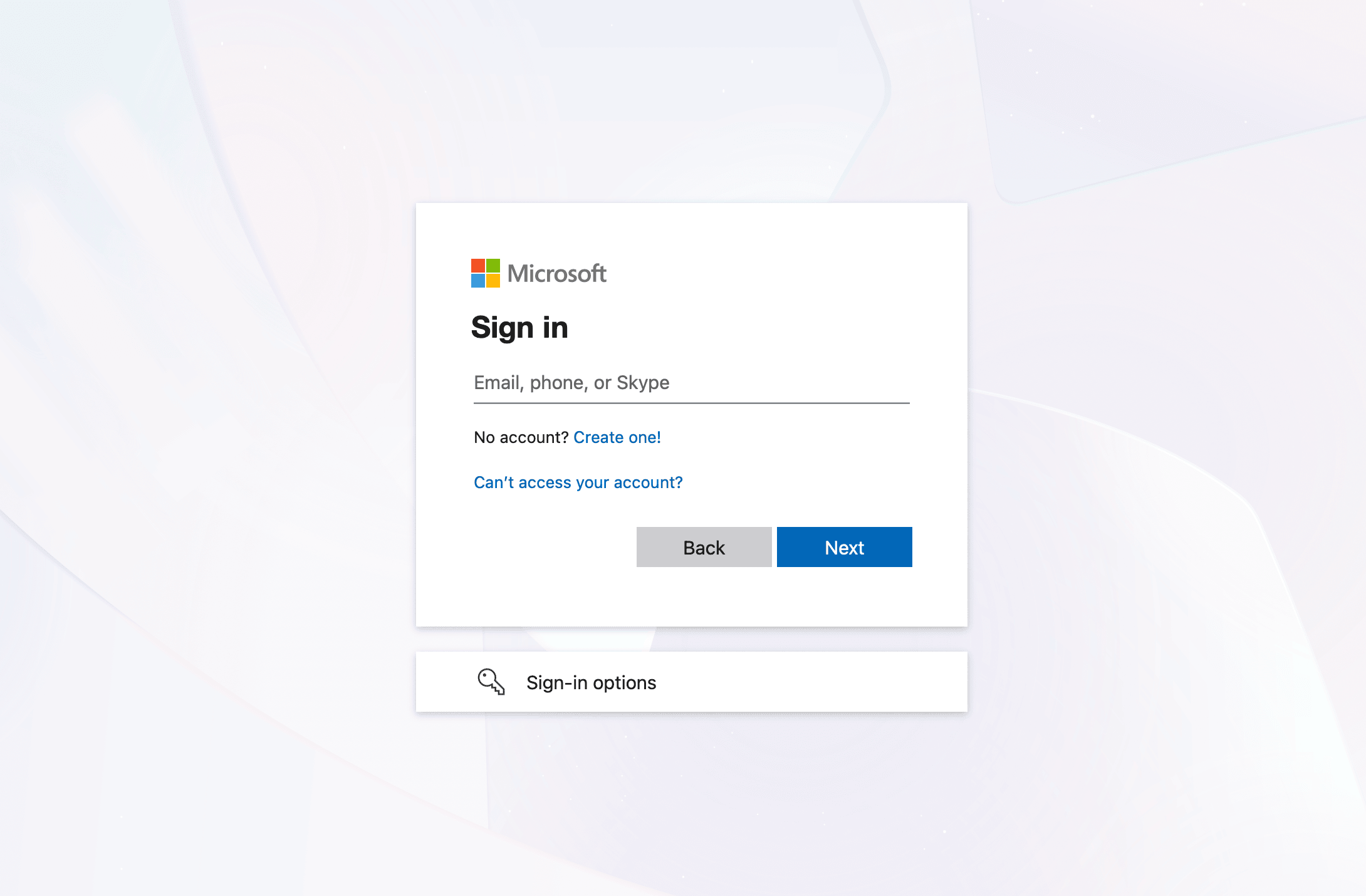
Sign in to your Microsoft account
Microsoft's sign-in page opens. Enter the email address for the Microsoft account you want to link — or choose an already-signed-in account if one is displayed. This should be the Office 365 account that holds the contacts and mailbox you want to use in NoteLedger.
Approve the requested permissions
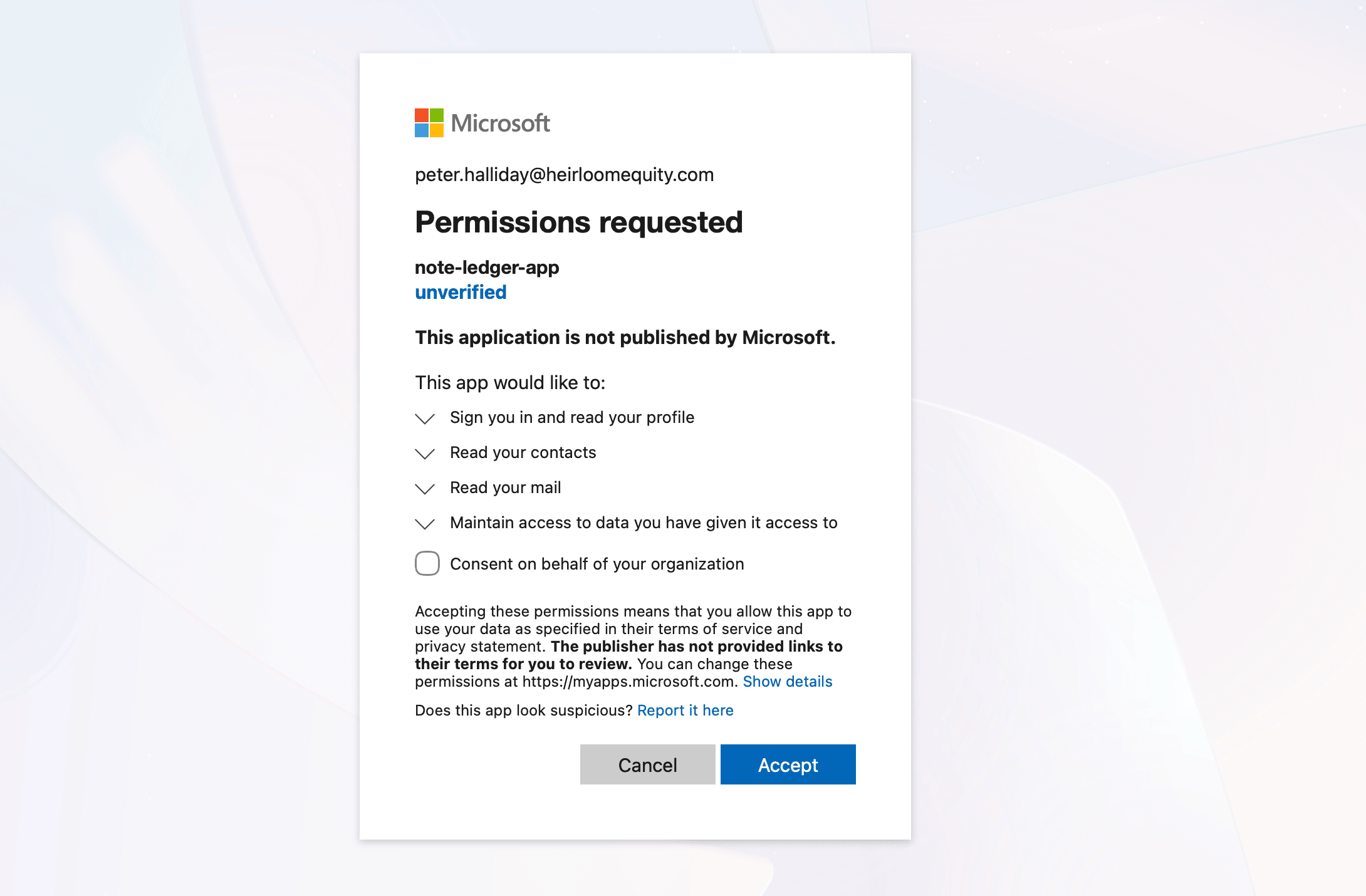
After signing in, Microsoft shows its consent screen listing the permissions NoteLedger is requesting. You will see items covering:
- Read your contacts (
Contacts.Read) — used to import contact names, email addresses, phone numbers, and addresses into NoteLedger. - Read your mail (
Mail.Read) — used exclusively to scan email signatures for contact details; NoteLedger never reads message bodies for any other purpose. - Sign in and read your profile (
User.Read) — your email address and display name are used to show which Microsoft account is connected. - Maintain access to data you have given it access to (
offline_access) — allows NoteLedger to silently refresh your access token so the connection stays active without requiring you to re-authenticate.
Click Accept to grant access.
- Read your contacts (
Confirm the connection
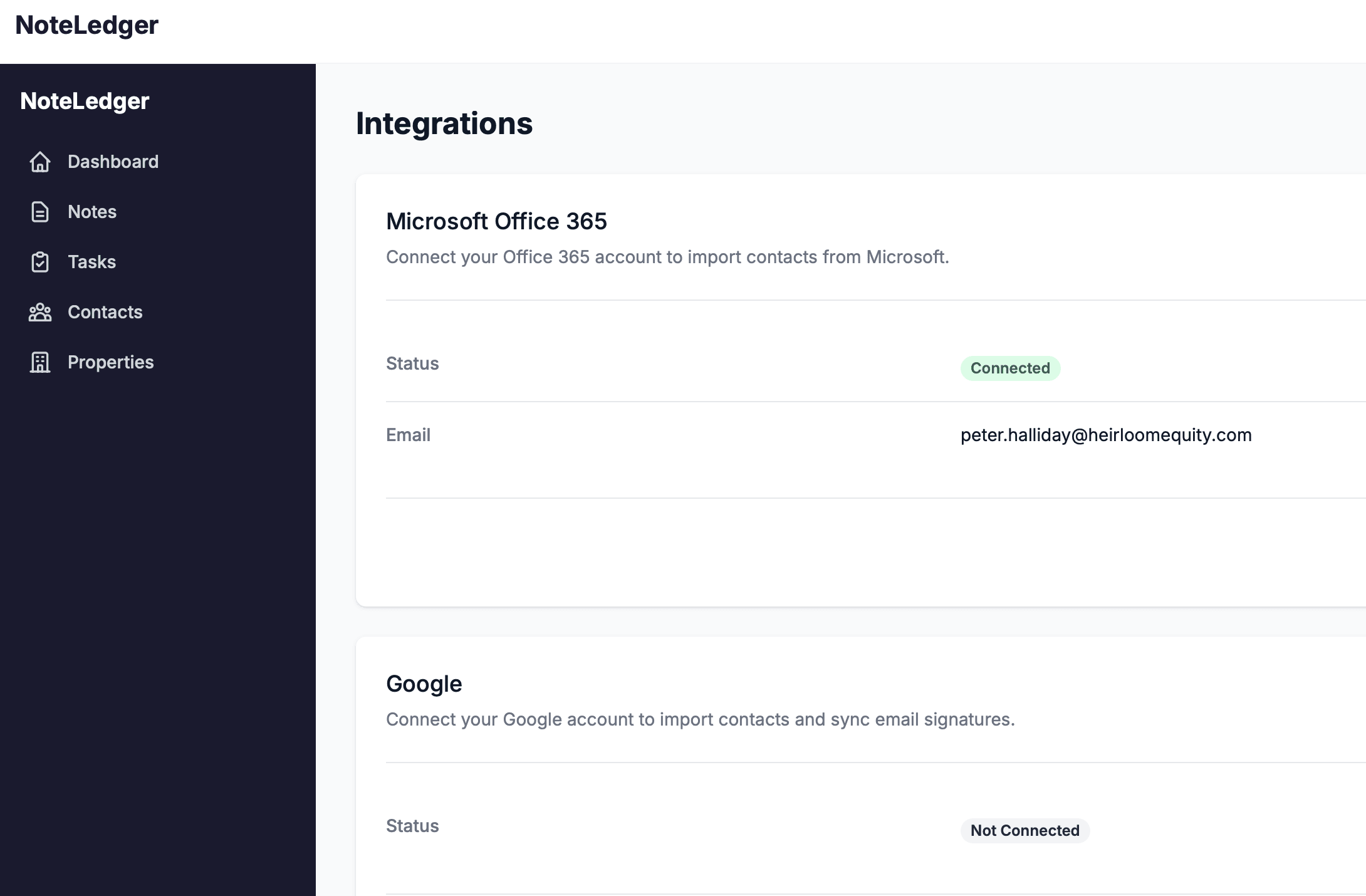
Microsoft redirects you back to NoteLedger's Integrations page. On the Microsoft Office 365 card, the Status row now shows a green Connected badge, and the Email row shows the Microsoft account address you linked.